
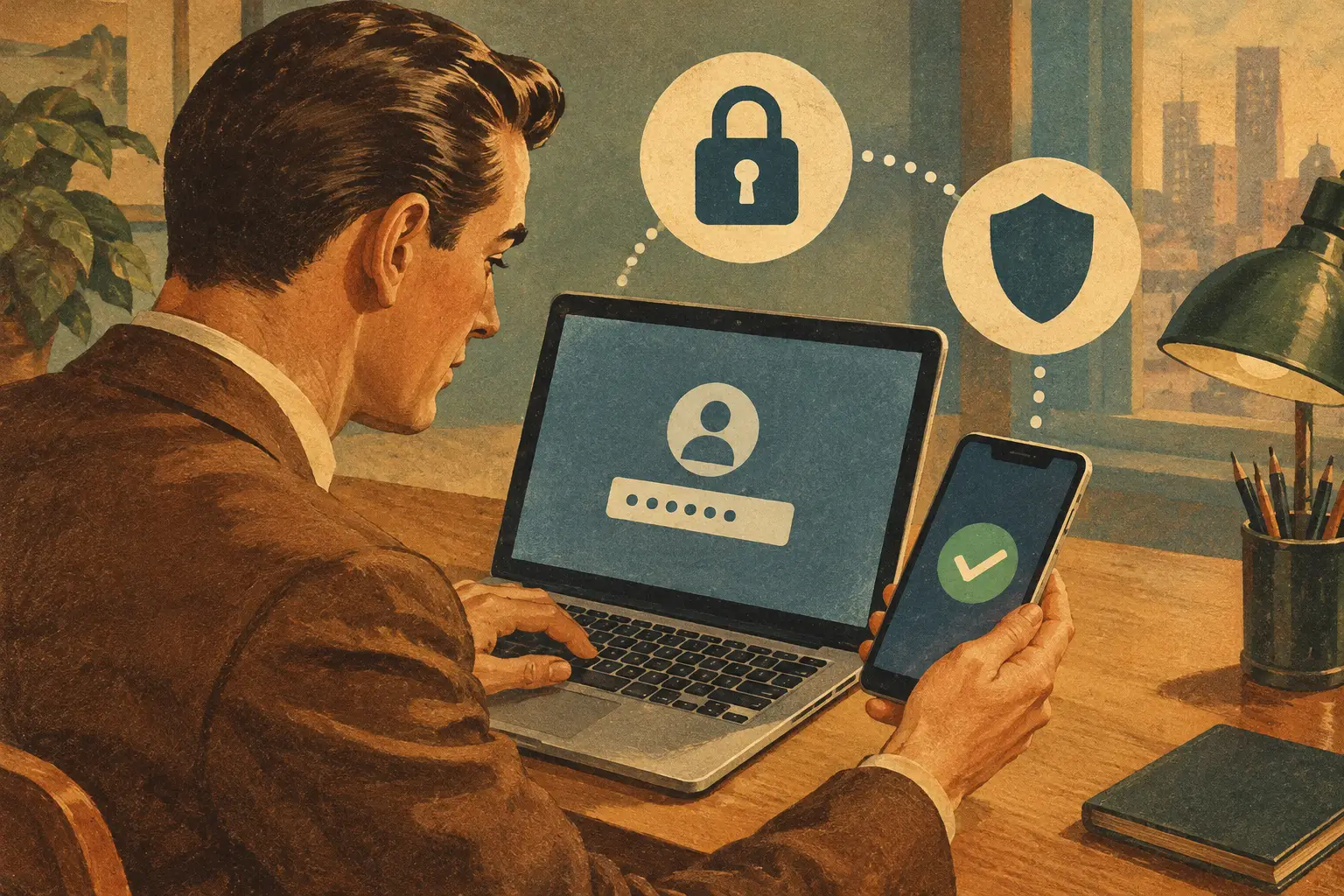
A password can be guessed, reused from an old data breach, or handed over to a convincing scammer. That is why so many banks, email providers, social media sites, and shopping accounts now ask for a second step when you sign in. What is two factor authentication? It is a simple way to prove it is really you, even if someone else has your password.
For many people, that extra prompt can feel like one more annoying screen. But when it is set up properly, two factor authentication is one of the most useful protections you can add to your important accounts. It takes a few seconds during sign-in and can prevent a much bigger problem later.
What Is Two Factor Authentication?
Two factor authentication, often called 2FA, requires two different types of proof before an account lets you in. Your password is usually the first factor. The second might be a code sent to your phone, a prompt in an app, or a small physical security key.
Think of it like your front door. A password is the key. Two factor authentication adds a second check, such as a door code or a trusted person confirming that you should be allowed in. Someone who steals the key still cannot get through without that second piece.
The word “factor” means a category of proof. The most common categories are something you know, such as a password or PIN; something you have, such as your phone or security key; and something you are, such as a fingerprint or face scan. A true two factor sign-in uses two different categories. Entering both a password and a PIN is more secure than one password, but they are both things you know, so that is not usually considered 2FA.
Why a Password Alone Is Not Enough
Passwords still matter. A long, unique password is a strong first line of defense. The trouble is that people have dozens of accounts, and it is easy to reuse a familiar password or make one that is easy to remember and easy to guess.
Criminals do not always try to guess passwords one at a time. They may use passwords leaked from another company, send fake sign-in emails, or call pretending to be from a bank, delivery service, or technical support team. If they get your password, they may try it on your email account first. From there, they can request password resets for many of your other accounts.
Two factor authentication slows that down. Even if a criminal has your password, they still need access to your trusted device or security key. That extra barrier can be the difference between a suspicious sign-in attempt and a compromised account.
Email deserves special attention. Your email account is often the recovery address for banking, shopping, social media, medical portals, and more. If you only turn on 2FA in one place today, start with your main email account.
Common Types of Two Factor Authentication
Not every second factor provides the same level of protection. The best option depends on the accounts you use, the devices you have, and what feels manageable for you.
Text message codes
A website sends a short code to your phone by text message. You type that code after your password. This is widely available and better than using only a password.
Text codes do have weaknesses. A scammer may try to talk you into sharing a code, or in rare cases may attempt to move your phone number to another SIM card. Never read a security code to someone who calls, texts, or emails you unexpectedly. Legitimate companies do not need you to give them a code that was sent to your phone.
Authentication apps
An authentication app creates a new temporary code every 30 seconds or so. Common examples include Google Authenticator, Microsoft Authenticator, Authy, and some password manager apps. Because the code is generated on your device rather than sent through text messaging, this method is generally safer than SMS.
An app also works when you are traveling or have no cell service, as long as your phone has power. The trade-off is that you need a plan for replacing a lost or broken phone. Save your recovery codes and make sure you understand how to move the app to a new device before you need to do it.
Sign-in prompts and passkeys
Some services send a prompt to a phone or tablet asking whether you are trying to sign in. You approve or deny it, sometimes after matching a number shown on the screen. This can be easy for everyday use, but do not approve a prompt you did not initiate. Repeated unexpected prompts may mean someone is trying to access your account.
Passkeys are another newer option. They can let you sign in using a fingerprint, face scan, or device PIN instead of typing a password. They are designed to reduce the risk of fake websites stealing your sign-in details. They can be very convenient, although it is worth checking how your passkeys are backed up and how you will use them when changing devices.
Physical security keys
A physical security key is a small device that plugs into a computer or connects wirelessly to a phone. It is one of the strongest options for accounts that support it, especially for business owners, remote workers, and anyone protecting sensitive information.
The downside is practical: you have to keep track of it. Many people who use a security key keep a spare in a safe place, so losing one key does not lock them out.
How to Set Up Two Factor Authentication Without Getting Locked Out
You will usually find the setting under Security, Sign-in, Login, or Account Settings. The exact wording changes from one service to another, but the process is similar. Take your time, especially on an email or financial account.
When setting it up, follow these four habits:
- Use an authentication app or passkey when the service offers it and you are comfortable using it.
- Save recovery codes somewhere safe, separate from the device you use every day. A printed copy in a secure location can be helpful.
- Add a backup method, such as a second trusted device, if the service allows it.
- Review your phone number and recovery email address so they are current and belong only to you.
Recovery codes are especially important. They are one-time codes that can help you get back into an account if your phone is lost, damaged, or replaced. Do not keep them in an unprotected note on the same phone that holds your authentication app. Do not email them to yourself in plain text, either. A password manager, a secure printed copy, or another protected storage method is often a better choice.
Watch for the Scams That Try to Get Around 2FA
Two factor authentication is powerful, but it cannot protect you if a scammer convinces you to approve a sign-in or share a code. That is why calm skepticism matters.
Be cautious when a message says your account will be closed immediately, a package cannot be delivered, or a family member needs urgent help. Instead of using a link in the message, open the company’s official app or type its website address yourself. If someone calls claiming to be from a bank, government office, or tech company, hang up and call the number printed on your card or found through an official statement.
A security code is private. Treat it like a password. If you receive a code you did not request, do not share it. Change your password and review recent account activity if you are concerned.
A Small Step That Brings Real Peace of Mind
The best security setup is one you can use confidently. For most households, that means unique passwords stored in a reputable password manager, two factor authentication on important accounts, and recovery information kept somewhere safe.
You do not need to set up every account in one afternoon. Start with email, banking, cloud photo storage, shopping accounts with saved payment details, and social media. If the choices feel confusing or you are worried about losing access when changing phones, patient one-on-one help can make the setup much less stressful. A few careful minutes now can help keep your photos, money, and personal information in the right hands: yours.