
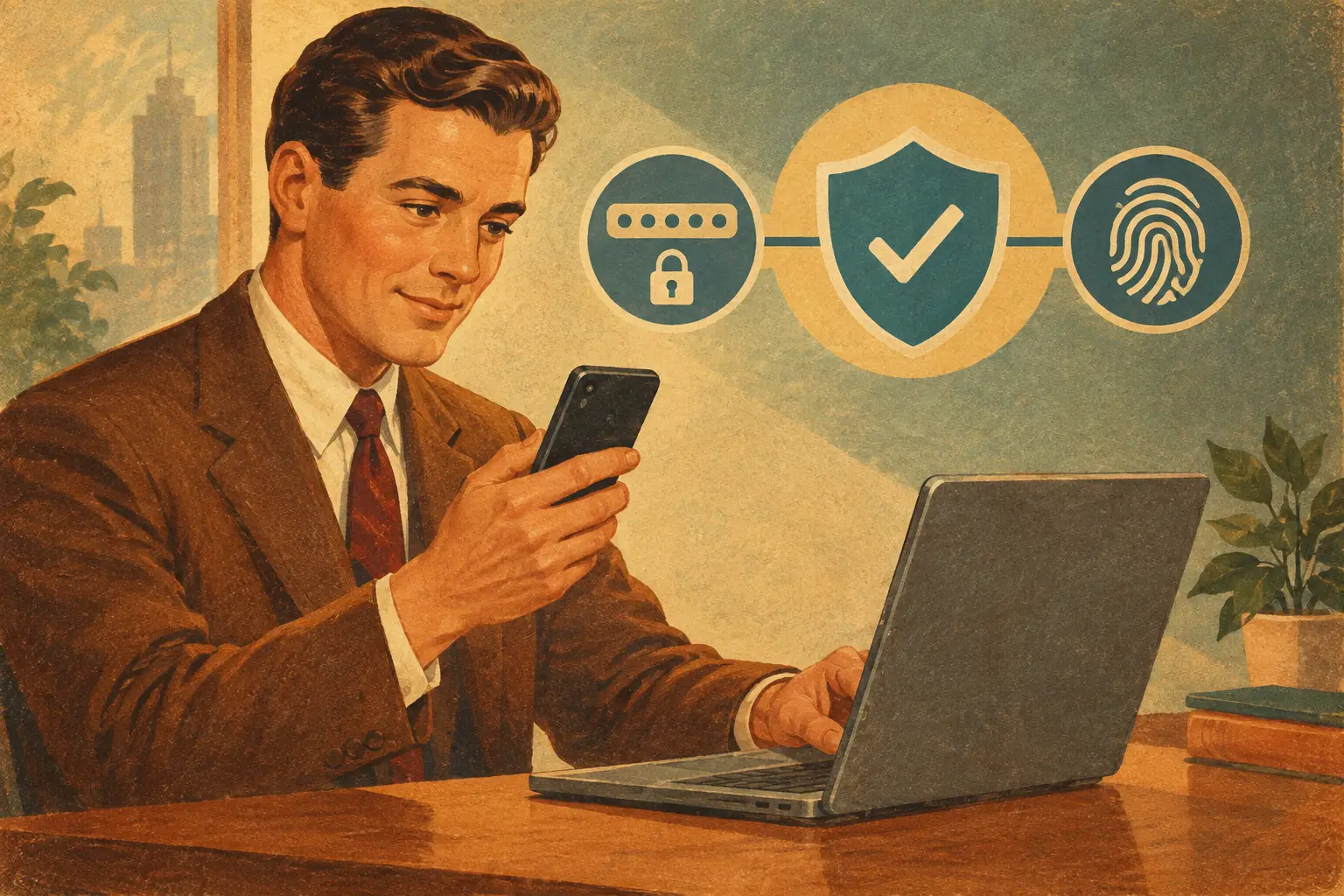
A stolen password can feel like handing a stranger the key to your email, bank account, photos, and shopping accounts. That is why two factor authentication explained in plain language is worth a few minutes of your time. It adds a second check before someone can sign in as you, even if they know your password.
The good news is that you do not need to be a technology expert to use it. You have probably already seen it when a website sends a code to your phone after you enter your password. It takes a small extra step, but it can prevent a very large problem.
What is two factor authentication?
Two factor authentication, often shortened to 2FA, asks for two different kinds of proof that you are really you. The first factor is usually something you know, such as a password or PIN. The second factor is usually something you have, such as your phone, or something you are, such as your fingerprint or face.
Think of a debit card. The card is one piece of proof because you have it. Your PIN is another piece because you know it. A person who finds your card still cannot normally use it without the PIN. Two factor authentication works in a similar way for online accounts.
Without 2FA, a password may be all that stands between a criminal and your account. Passwords can be guessed, reused from another breached website, or collected through a fake email or text message. With 2FA turned on, the criminal also needs access to your second factor. That extra barrier stops many common account takeovers.
Two factor authentication explained with an everyday example
Imagine you are signing in to your email on a new computer. You enter your email address and password, as usual. The email provider then asks for a six-digit code. You open an app on your phone, receive a text, approve a sign-in prompt, or use a security key to provide that code.
Only after both steps are completed are you allowed into the account.
If someone across the country has your password but does not have your phone or security key, they should not be able to finish the sign-in. They may try to trick you into giving them the code, which is why knowing how 2FA works matters. A real company will not call, text, or email asking you to read them a verification code.
Common types of second factors
Not every form of 2FA offers the same level of protection. The best choice depends on the account, the devices you use, and what you will find manageable day to day. A security method only helps if you can use it consistently and recover access when needed.
Here are the most common options:
- Text message codes: A code is sent by SMS to your phone. This is easy to understand and better than using a password alone, but text messages can sometimes be intercepted or redirected if a criminal takes over your phone number.
- Authenticator apps: An app on your phone creates a new code every 30 seconds or so. These apps generally provide stronger protection than text messages and do not need a cellular signal once set up.
- Sign-in prompts: Instead of typing a code, you receive a message asking whether you are trying to sign in. You tap Approve or Deny. This is convenient, but only approve a prompt when you have just tried to sign in yourself.
- Security keys: A small physical key connects to a computer or works wirelessly with a phone. It is among the strongest choices, especially for email, financial accounts, and business accounts, but it needs to be kept somewhere safe.
Some accounts also use a fingerprint, face scan, or device PIN to confirm a sign-in. These can be very convenient because you are using a device you already control. They are not a replacement for a good password, but they can be part of a strong sign-in setup.
Where should you turn on 2FA first?
Start with the accounts that could cause the most damage if someone got in. Your primary email account should be near the top of the list. Email is often used to reset passwords for other services, so control of your inbox can lead to control of many other accounts.
Next, protect banking and payment accounts, password managers, cloud storage, social media, online shopping, and any work account. If you run a small business, make 2FA a priority for business email, accounting, payment systems, customer information, and administrator accounts.
Do not feel you must secure every account in one afternoon. Begin with your email and financial accounts, then work through the rest over time. A calm, steady approach is more useful than putting it off because the list feels too long.
How to set up two factor authentication safely
Most websites place this setting under Security, Login and Security, Password and Security, or Account Settings. Look for terms such as Two-Step Verification, Two-Factor Authentication, or Multi-Factor Authentication. The name varies, but the purpose is the same.
When setting it up, use your own phone or device, and take your time reading each screen. If the account offers an authenticator app and you are comfortable using one, it is often a good choice. If text messages are the option you will actually understand and use, that is still a meaningful improvement over having no second factor at all.
Pay close attention to recovery codes. Many services provide a short list of one-time backup codes when you enable 2FA. These can get you back into an account if your phone is lost, broken, or replaced. Print them and store them in a secure place at home, or save them in a trusted password manager. Do not leave them in an unprotected note on your phone or in your email inbox.
It is also wise to add a backup method if the service allows it. For example, you might use an authenticator app as your main method and keep recovery codes in a safe place. Avoid using a friend or family member's phone number as your only backup unless you have discussed it carefully and trust the arrangement completely.
The most common 2FA mistakes
The biggest mistake is sharing a code with someone who contacts you unexpectedly. Scammers may pretend to be from your bank, email provider, internet company, or even a family member. They may say they are helping you stop fraud, but the code they want is often the final piece they need to enter your account.
Never share a one-time code, approval prompt, or recovery code with anyone who calls, texts, or emails you first. If you are unsure, hang up and contact the company using a phone number from its official statement, app, or website. Do not use a number provided in the suspicious message.
Another mistake is approving sign-in prompts repeatedly because they keep appearing. This can be a tactic called prompt bombing. If you did not try to sign in, tap Deny. Then change your password, especially if you have reused it anywhere else.
Finally, do not wait until a phone is lost to think about account recovery. Make sure your recovery email and phone number are current. When you get a new phone, move your authenticator apps before wiping or trading in the old one whenever possible.
What if you cannot receive a code?
First, pause. Repeatedly requesting codes can make the situation more confusing. Check that your phone has service, that airplane mode is off, and that you are looking at the correct phone number or authenticator app. A code from an authenticator app may work even when you have no cell service.
If your phone is unavailable, use a saved recovery code or another backup option offered by the account. If those are not available, follow the account's official recovery process. It may take time because the company needs to make sure it is really you.
For accounts you use regularly, it can help to review your security settings once or twice a year. Confirm your recovery information, remove old devices, and make sure you still know where your backup codes are stored.
Two factor authentication is not meant to make life difficult. It is a small habit that gives your accounts a second locked door. If the setup screens feel confusing or you want help choosing a method that fits your devices, patient one-on-one support can make the process much less stressful. No question is silly when it helps keep your information in your hands.