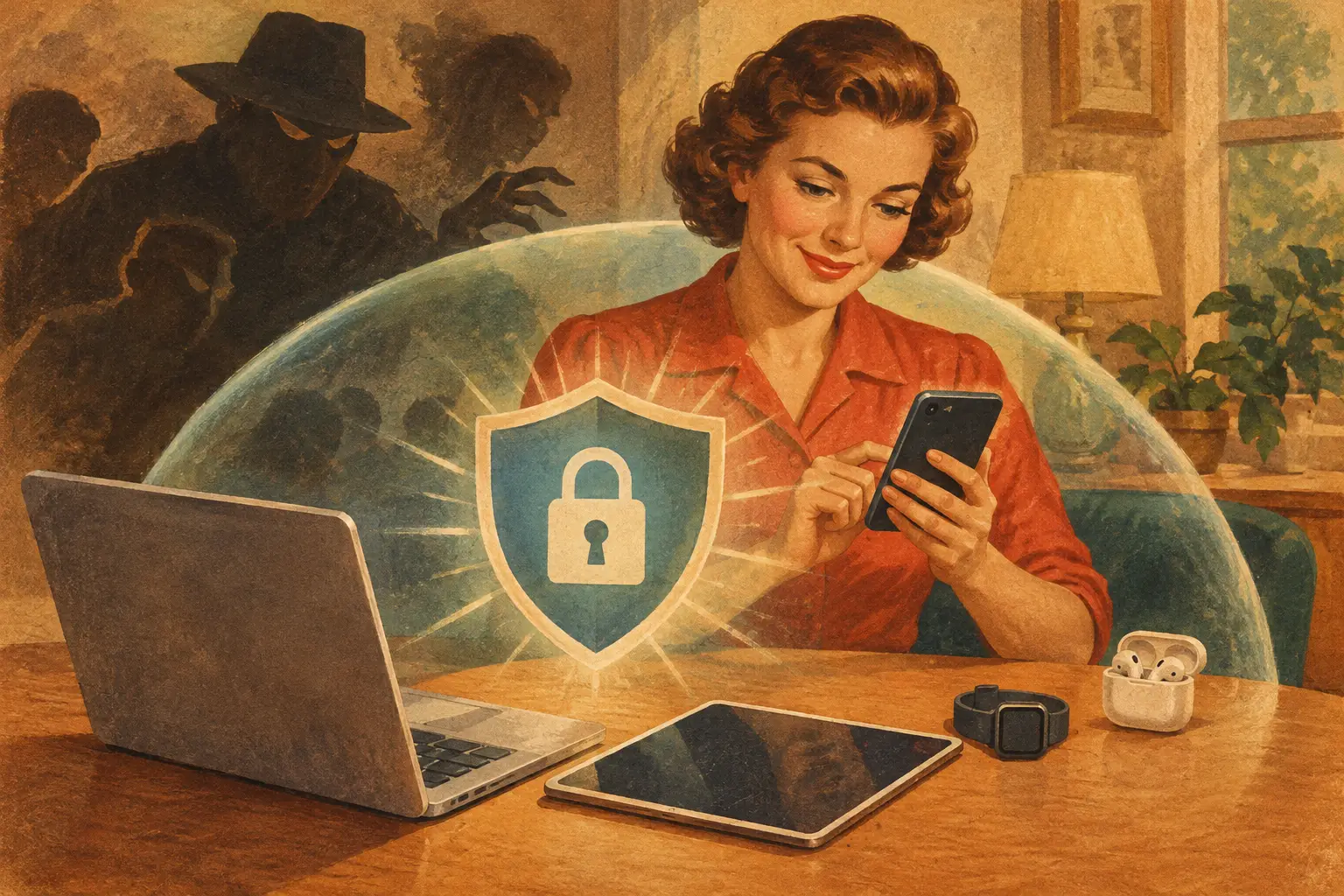
A scam often begins with a small interruption: a text saying your package is waiting, a pop-up warning that your computer is infected, or a caller claiming to be from your bank. The best top scam protection tools do not make these messages disappear completely. They give you time, warnings, and safer habits before a rushed click or conversation turns into a real problem.
For most homes, scam protection is not one app. It is a few simple layers that work together across your computer, phone, email, and financial accounts. The right mix depends on the devices you use and where you feel least confident. No question is silly when money, personal information, or family photos could be at risk.
What Scam Protection Tools Can and Cannot Do
A good tool can flag a suspicious website, block a known malicious download, filter many junk calls, or make it harder for someone to enter an account with a stolen password. Those are meaningful protections. But no program can reliably tell you whether every message, caller, or online seller is honest.
Scammers use pressure because pressure works. They may say a payment is overdue, a relative needs help, or an account will be closed in minutes. The most valuable protection is a setup that makes you pause: a browser warning, a second sign-in prompt, or a trusted person you can call before sending money.
Be cautious of any company that promises to stop every scam. The better goal is to reduce opportunities for fraud and make recovery easier if something does go wrong.
Top Scam Protection Tools Worth Setting Up
A password manager
A password manager is one of the strongest everyday defenses against account takeovers. It creates and remembers a different, long password for each account. That means a password exposed in one data breach cannot automatically open your email, banking, shopping, or social media accounts.
It also helps spot fake websites. A password manager usually recognizes the real site where you saved your login. If it does not offer to fill your password on a page that looks familiar, stop and check the web address carefully. That moment of hesitation can prevent a convincing phishing page from collecting your information.
The trade-off is that there is a small learning curve. You need one strong master password, and you should keep recovery information somewhere safe. For many people, a built-in password manager from their phone, browser, or computer account is a comfortable place to start. Others prefer a dedicated password manager with sharing and emergency-access options for family members.
Multi-factor authentication
Multi-factor authentication, often called MFA or two-step verification, adds a second check when someone tries to sign in. After entering your password, you may approve a prompt on your phone, use an authenticator app, or enter a code.
Turn it on first for email. Your email account is often the key to resetting passwords elsewhere, so protecting it well matters more than most people realize. Then use it for financial accounts, cloud photo storage, social media, and any account containing personal information.
Text-message codes are better than using a password alone, but an authenticator app or approval prompt is usually safer. Scammers sometimes trick people into reading a texted code aloud. A real bank or support representative will not ask you for a verification code sent to your phone.
Security software for computers and phones
Built-in security protections on current Windows, Mac, iPhone, and Android devices are much better than they used to be. Keeping your operating system, browser, and apps updated is the foundation. Updates close security gaps that criminals may use to install unwanted software or steal information.
For a Windows computer, the built-in antivirus protection is enough for many households when it is active and updated. A reputable paid security suite can add features such as phishing protection, identity monitoring, VPN access, or extra support. Whether it is worth paying for depends on what you will actually use.
Avoid installing several antivirus programs at once. They can slow down a computer, create confusing alerts, and sometimes interfere with each other. One well-configured security tool, paired with regular updates, is the calmer choice.
Browser and email protections
Your browser is where many scams arrive. Chrome, Edge, Firefox, and Safari include warnings for known dangerous sites. Leave those warnings turned on, and do not click through them simply because a page claims to be urgent.
Email providers also filter a great deal of junk mail and phishing. Still, scam messages can reach the inbox. Mark suspicious messages as spam or phishing rather than replying or forwarding them. Over time, this helps the email provider learn what to block.
A simple habit makes these tools more useful: do not use a link in an unexpected email or text to sign in, pay a bill, or update account details. Open the company’s official app, use a saved bookmark, or type the known website address yourself. This avoids many fake login pages, even when the message looks convincing.
Call screening and spam-text filters
Phone scams can feel more personal because a real voice is asking for help or demanding action. Most smartphones offer ways to silence unknown callers, identify possible spam, or filter messages from unfamiliar senders. Your mobile carrier may offer additional call-blocking features as well.
These features are helpful, but they are not perfect. A legitimate doctor’s office, delivery driver, school, or new customer may call from a number you do not recognize. Rather than answering every call, let unfamiliar numbers go to voicemail. Honest callers can leave a message with a way to verify who they are.
Never grant remote access to your computer because an unexpected caller says there is a virus, a refund, or suspicious activity. Hang up, then contact the company using a trusted number from a statement, official website, or card in your wallet.
Credit monitoring and credit freezes
For people concerned about identity theft, credit monitoring can alert you when a new account or credit inquiry appears in your name. It can be useful, but it is an alert after activity has occurred, not a wall that prevents every problem.
A credit freeze is stronger for stopping new-credit fraud. It restricts lenders from opening new accounts in your name until you temporarily lift the freeze. It may be especially worth considering after a known data breach or if your personal information has been exposed. Keep your account details and PINs organized securely so lifting a freeze later is not frustrating.
The Setup Details That Make a Real Difference
The top scam protection tools are only useful when they are active, updated, and understood. Start with the accounts that would cause the most trouble if someone took them over: email, banking, mobile phone account, cloud storage, and shopping accounts with saved payment details.
Check that your device updates are automatic. Remove apps you no longer use, especially unfamiliar remote-access or “cleaner” apps. Review browser extensions too. An extension should have a clear purpose and come from a source you trust.
Backups are another quiet form of protection. They will not stop a scammer from contacting you, but they can reduce the damage from ransomware, accidental deletion, or a compromised computer. Keep important files and photos backed up somewhere separate from the device itself, and make sure you know how to restore them.
If family members share devices or help one another with accounts, agree on a simple safety rule: no one sends money, gift cards, cryptocurrency, passwords, or verification codes because of an unexpected call, text, email, or pop-up. Talk to each other first. Scammers often try to isolate people so they cannot get a second opinion.
When You Need a Person, Not Another App
Security tools can create their own anxiety when alerts are unclear or settings feel overwhelming. A pop-up may be a real browser warning, a sales message from installed software, or a scam pretending to be security software. The safest response is usually not to click, call the number in the pop-up, or allow remote access.
Instead, take a screenshot if you can, close the browser, and ask for help from someone you trust. A patient technology helper can check whether your protection is working, remove suspicious software, improve your account settings, and explain what the warnings mean in plain language.
You do not need to become a cybersecurity expert to protect yourself well. A few carefully chosen tools, a current backup, and permission to pause before acting can make everyday technology feel much safer. When something feels urgent or slightly off, give yourself time. Real organizations can wait for you to verify them.