A new TV should make movie night easier, not leave you staring at a screen asking for a password you cannot find. Smart TV streaming setup help is useful when the television, Wi-Fi, streaming apps, cable box, sound system, and remote all need to work together. The good news is that most setup problems have a clear fix once they are handled in the right order.
Start with the connection, not the apps
Streaming depends on your home internet connection. A television can turn on, show its home screen, and even connect to Wi-Fi while still having a weak enough signal to make shows pause, buffer, or lose picture quality.
Before downloading every app, make sure the TV is connected to the correct Wi-Fi network. Many homes have more than one network name, especially when a router offers both a regular and a 5 GHz connection. Either may work, but the better choice depends on where the TV sits and how strong the signal is in that room. A faster network is not always the best option if its signal does not reach the living room reliably.
If the TV is close to the router, an Ethernet cable can provide a more dependable connection than Wi-Fi. That is not practical for every room, and a good Wi-Fi connection is often perfectly fine. But for a basement TV, a home office setup, or a busy household with several people online at once, a wired connection can prevent a lot of frustration.
A quick test helps: play a short video in one streaming app, then try another. If both struggle, the issue is likely the connection rather than the app itself. Restarting the TV and router can also clear a temporary problem, but repeated buffering may call for a closer look at router placement, Wi-Fi coverage, or your internet service.
Smart TV streaming setup help begins with accounts
Most streaming services require an account, a password, and sometimes a verification code sent by email or text message. This is often the part that feels more stressful than connecting cables.
It helps to have your phone, tablet, or computer nearby during setup. You may need to check an email inbox, approve a sign-in request, or enter a code displayed on the television. If you already subscribe to a service, sign in with the account you use on your other devices. Creating a second account by accident can lead to duplicate charges and confusion about which password is correct.
Take your time with free trials, too. They can be useful, but check whether they automatically become paid subscriptions. Write down the service name, the email address used, and the renewal date somewhere safe. A password manager is ideal, though a private written record can be better than relying on memory.
You do not need every streaming app. Start with the services your household actually watches, such as a live TV provider, a movie service, local news, sports, or a family-friendly option. Adding fewer apps makes the home screen easier to use and reduces the chance that someone will select the wrong service or rent a title by mistake.
Get the remote under control
A smart TV remote often has fewer buttons than an older cable remote, but that does not always make it simpler. Some remotes control only the TV. Others can control the TV, soundbar, cable box, and streaming device. Voice buttons can be handy, but only once you know what the microphone is listening to.
The goal is not to learn every button. The goal is to make the few buttons you use every day predictable. Most households need power, volume, home, back, directional arrows, select, and input. If you use a cable box or DVD player, the input button matters because it switches the TV between devices.
Put fresh batteries in the remote before assuming it is broken. If a remote works only sometimes, check whether something is blocking the TV sensor. For Bluetooth remotes, it may need to be paired again through the TV settings.
It is also worth setting up the TV so one remote handles volume. If your sound comes through a soundbar, the TV may need an audio setting changed before the volume buttons work properly. This small detail prevents the common problem of turning the television volume up while the soundbar remains muted or set very low.
Picture and sound settings should suit your room
Store displays are usually set to bright, dramatic picture modes that look impressive under showroom lights. At home, those settings can make faces look overly sharp, colors look too intense, and evening viewing feel hard on the eyes.
Try the TV's Movie, Cinema, or Filmmaker picture mode for regular viewing. These modes are often more natural. If the room has a lot of daylight, you may prefer a brighter setting during the day and a calmer one at night. There is no single correct choice. The best setting is one that looks comfortable to you.
For sound, begin by checking that audio is coming from the place you expect: TV speakers, soundbar, receiver, or headphones. If dialogue is hard to hear, look for settings labeled Clear Voice, Dialogue Enhancement, or Speech. These can help, although turning them up too far may make other sounds feel flat.
Captions are another useful option, not a last resort. Many people use them for quiet conversations, accents, busy scenes, or late-night viewing. You can usually adjust caption size, color, and background so they are easier to read.
Keep the setup safe and simple
A smart TV is a computer connected to your home network, so a few basic safety steps are worthwhile. Use a strong Wi-Fi password and avoid sharing streaming account passwords widely. If a screen asks you to enter banking information, a password, or a payment card unexpectedly, stop and verify what app or service you are using.
Set a purchase PIN if children, guests, or accidental button presses could lead to rentals or app purchases. Review the TV's privacy settings as well. Many televisions offer viewing-data collection and voice features that can be turned off if you do not want to use them.
Software updates matter, but they do not need to become a weekly chore. Allow automatic updates when possible, or check for updates if an app suddenly stops working. Keeping the TV updated can fix bugs, improve compatibility, and close security issues.
When the problem is bigger than one setting
Sometimes the issue is not the TV at all. A weak Wi-Fi signal, an older router, an incorrectly connected soundbar, a cable box with the wrong output setting, or a remote that controls the wrong device can make a simple setup feel impossible.
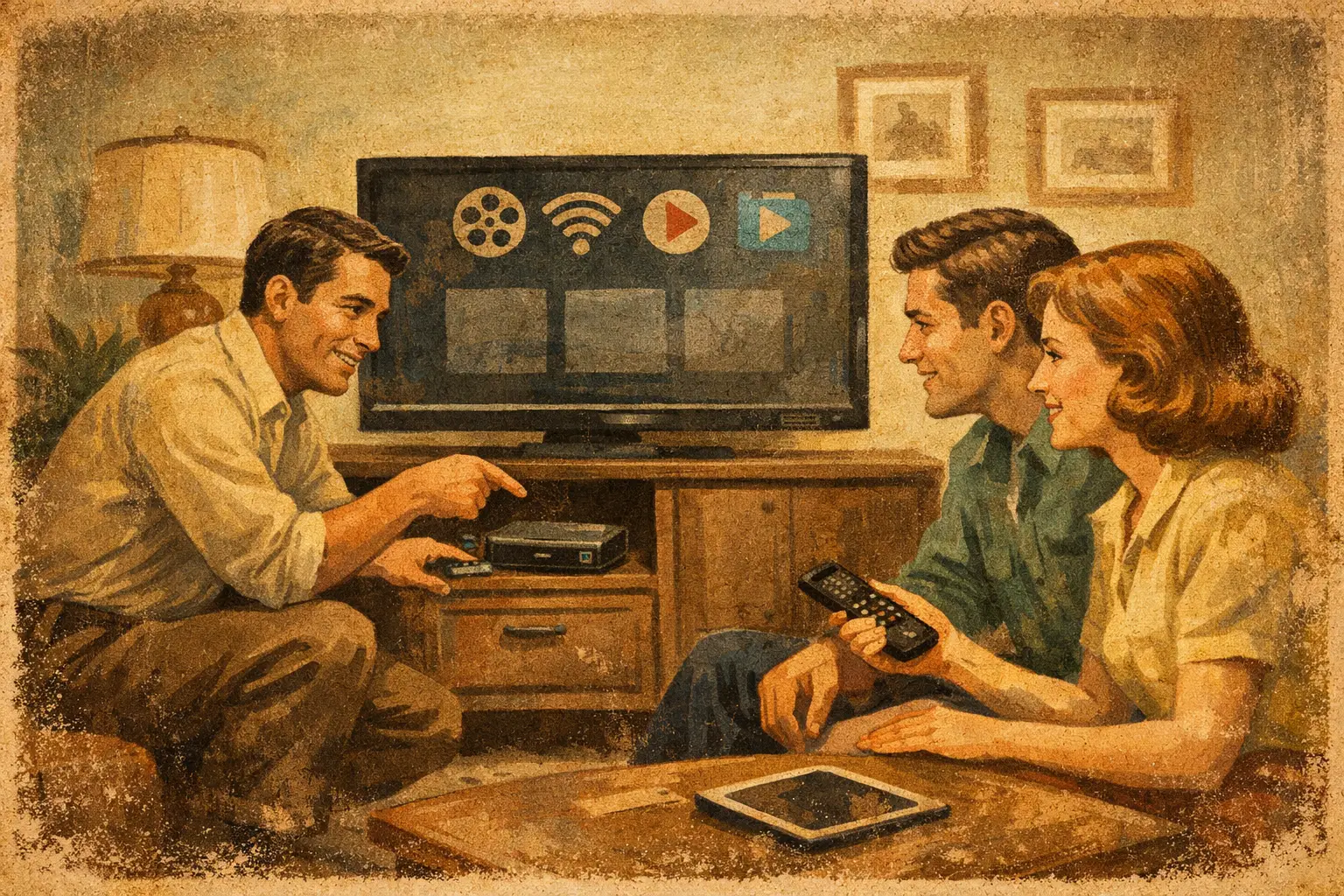
This is where in-home help can save time. A patient technician can look at the whole system in the room, connect the equipment correctly, organize the apps, and explain the everyday steps in plain language. For people in Durham Region, Eric the Tech can provide friendly help for home technology without making you feel rushed or talked down to.
It can also help to ask for coaching, not just a repair. Having someone show you how to return to the home screen, switch inputs, find a show, use captions, and recover a forgotten app password makes the setup useful long after the appointment ends.
A small checklist before asking for support
If you need help, gather the TV remote, any cable or streaming-device remotes, and the passwords or email access used for your streaming accounts. Know which services you want to watch and whether you use a soundbar, cable box, antenna, game console, or DVD player. Those details help solve the problem faster.
Most of all, do not feel embarrassed if the system feels confusing. Modern entertainment setups combine several devices, accounts, and settings in one place. Once everything is organized and you know the few steps that matter, the TV can go back to doing its real job: helping you relax and enjoy what you want to watch.