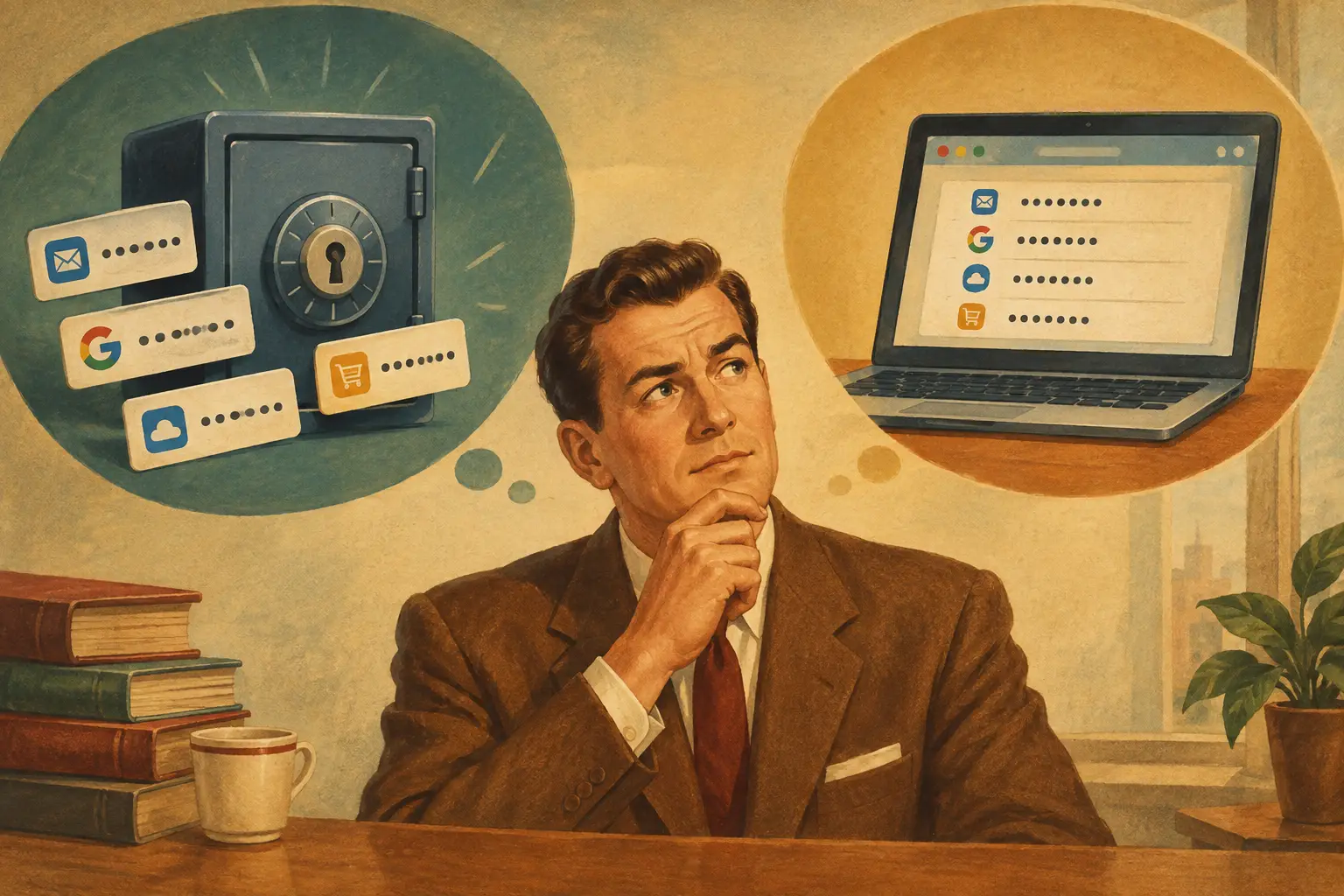
A saved password can feel like a small convenience until you are locked out of an email account, see an unfamiliar purchase on your card, or need to sign in on a new phone. The question of password manager versus browser passwords is really about where you place trust, how easily you can recover from a problem, and how much help you want from your tools.
For many households, browser password saving is the first system they use. A browser asks, “Save password?” and the answer is often yes. That is not automatically a bad choice. It can be a useful starting point. But as your online life grows to include banking, medical portals, shopping, streaming, school accounts, work tools, and smart-home apps, a dedicated password manager can offer more control and better protection.
What browser password saving does well
Browsers such as Chrome, Edge, Firefox, and Safari can save usernames and passwords, then fill them in when you return to a website. If you are signed in to the browser on more than one device, those passwords may sync between your computer, phone, and tablet.
The biggest benefit is simplicity. There is nothing new to install, and there is usually very little setup. For someone who uses one browser on one or two personal devices, it can reduce the temptation to reuse the same password everywhere or write passwords on a sticky note.
Browser password tools have improved over the years. Many can suggest stronger passwords, alert you if a password appears in a known data breach, and help you change weak passwords. If this is the system you already understand and consistently use, it is better than relying on memory alone.
Still, convenience comes with limits. Browser passwords are tied closely to that browser and the account used to sync it. If you switch browsers, share a computer, have several family devices, or need to sign in to an app that does not cooperate with your browser, the experience can become confusing.
Password manager versus browser passwords: the key difference
A dedicated password manager is built specifically to store and protect login information. It usually works across browsers, computers, phones, tablets, and apps. You remember one strong master password, and the manager handles the rest.
The practical difference is organization and independence. Instead of your passwords living mainly inside Chrome, Edge, Safari, or another browser, they live in a separate encrypted vault. You can use that vault regardless of which browser you open.
Most password managers also store more than passwords. They can securely hold credit card details, Wi-Fi passwords, secure notes, identity information, recovery codes, and answers to security questions. That can be useful when setting up a new device or helping a family member access an important account, provided sharing is set up carefully.
A good password manager also makes it easier to use a different, long password for every account. That matters because password reuse is one of the most common ways a single data breach turns into several compromised accounts. If a password from one store is stolen and you used it for your email too, a criminal may try the same combination elsewhere.
Security is more than where passwords are stored
Neither option protects you if someone knows your device passcode, if your computer has serious malware, or if you are tricked by a convincing scam website. Password tools are helpful, but they are not a substitute for careful habits.
That said, a password manager can add useful layers. Many support a strong master password, biometric sign-in such as a fingerprint or face scan, two-factor authentication, security reports, and secure password sharing. Some can warn you when a website address does not match the login saved in your vault. That may help prevent you from entering details on a look-alike phishing site.
Browser password saving can be secure when your computer account is protected, your browser is up to date, and your browser sync account has a strong password and two-factor authentication. The issue is not that browsers are careless by definition. The issue is that a browser is designed first for browsing, while a password manager is designed first for managing sensitive credentials.
There is also a trade-off to consider. A password manager creates one very important key: your master password. If you forget it and have not set up account recovery properly, getting back into the vault may be difficult or impossible. That is intentional. A company should not be able to casually read your vault for you. But it means setup should be done thoughtfully, not rushed.
When browser passwords may be enough
Browser passwords can be a reasonable fit if you use one personal computer, stay mainly in one browser, and want the least complicated option. They may also suit someone who is just beginning to replace reused or weak passwords with unique ones.
If that is your situation, make the browser option safer. Protect your computer with a separate sign-in password or PIN. Use a strong password for the Google, Microsoft, Apple, or Firefox account that syncs your browser data. Turn on two-factor authentication for that account and for your email account. Keep the browser and operating system updated.
Avoid saving passwords in a browser on a shared family computer, public computer, or a device that several people can unlock. It is too easy for the wrong person to gain access to your accounts.
When a password manager is the better choice
A password manager is usually the better fit for people with many accounts, multiple devices, or a mix of personal and work logins. It is especially helpful if you switch between a Windows computer, iPhone, Android phone, iPad, Mac, and different browsers.
It can also make life easier for families. Rather than texting a Wi-Fi password or writing a streaming login on paper, some password managers allow secure sharing with selected people. This should be handled with care. Not every password should be shared, and banking, email, and personal identity accounts are generally best kept individual.
For small businesses, a password manager is often a much safer alternative to spreadsheets, notebooks, or a shared browser profile. Team members can receive access to the accounts they need without being handed the actual password. When someone leaves the business, access can be removed and passwords can be changed. The exact setup depends on the size of the team and the sensitivity of the information involved.
A calm way to move your passwords
Moving to a password manager does not mean you must change every password in one afternoon. That approach can be tiring and may lead to mistakes. Start with the accounts that would cause the most trouble if someone else accessed them: your primary email, financial accounts, phone carrier, cloud storage, and major shopping accounts.
Install one reputable password manager, create a long master password that you do not use anywhere else, and turn on two-factor authentication. Save the recovery information somewhere safe that is not just inside the password manager itself. A printed recovery kit stored in a secure place may be a sensible backup for some households.
Then change important passwords one at a time. Let the password manager generate a unique password, save it, and confirm that you can sign out and sign back in. This small check prevents the worry of discovering later that a password was not saved correctly.
Once you are comfortable, add less critical accounts as you use them. You do not need to remember every password anymore. You only need to know how to access your vault safely.
Watch for the scams around password tools
Scammers know that people worry about passwords. Be cautious with unexpected pop-ups saying your password manager or browser needs immediate repair. Do not call phone numbers in alarming pop-ups, and do not install software because a stranger on the phone tells you to.
Be equally careful with emails that claim you must reset your password immediately. Instead of using the email link, open the website or app yourself and sign in normally. If there is a real concern, you will usually see it after signing in.
A password manager can reduce some risks, but confidence comes from knowing what you are clicking and why. If a new setup feels overwhelming, patient one-on-one help can make the process much less stressful. Eric the Tech can help set up a password system, explain recovery options in plain language, and make sure your devices are working the way you expect.
The best choice is the one you will use consistently and safely. Start with your most important accounts, give yourself permission to go slowly, and build a system that lets you spend less time hunting for passwords and more time using your technology with confidence.