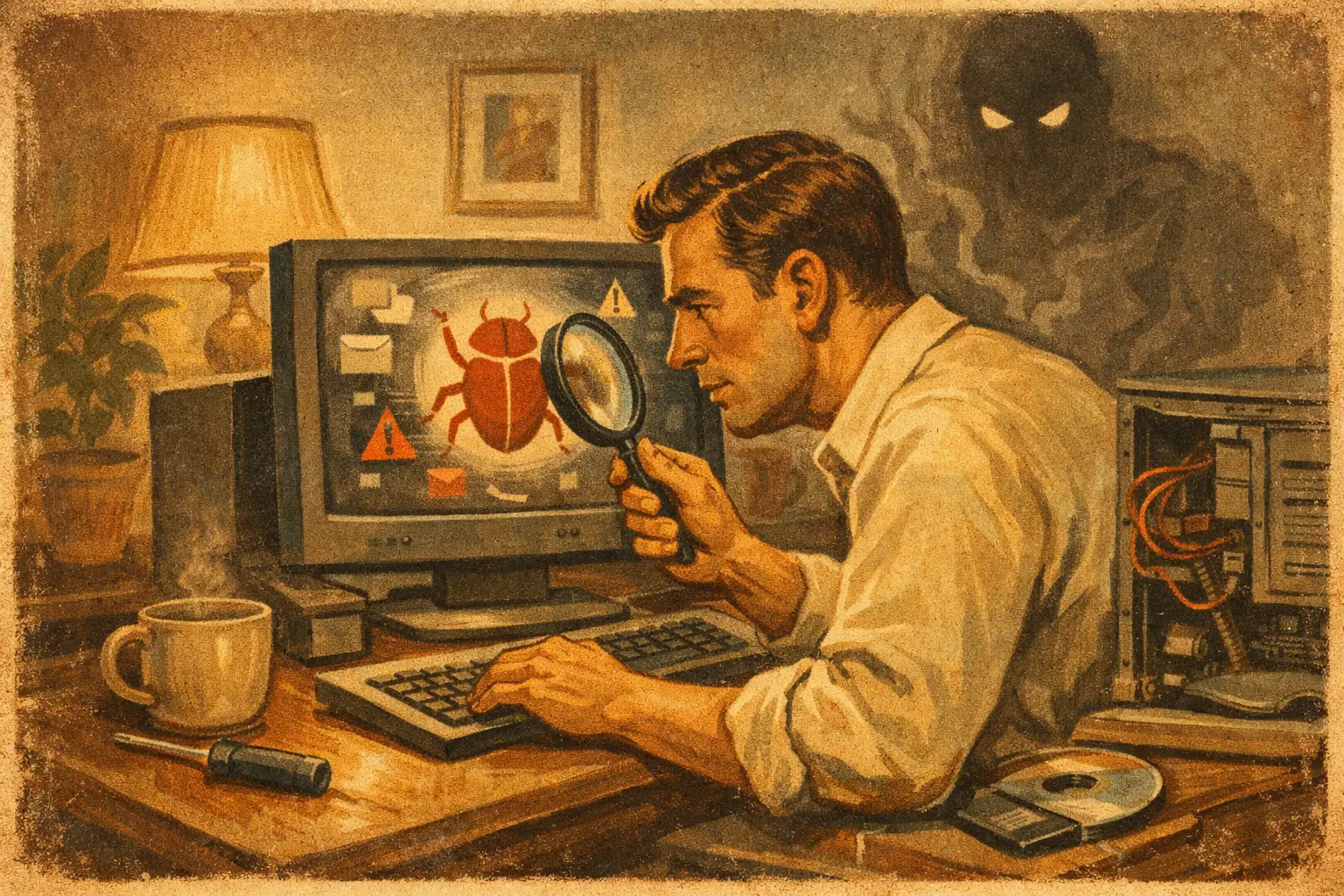
A computer that suddenly fills the screen with warnings, redirects your searches, or becomes painfully slow can make anyone worry. Knowing how to remove computer malware helps you act calmly, protect your personal information, and avoid making the problem worse.
Malware is a broad name for harmful software. It can include viruses, spyware that watches what you do, ransomware that locks your files, or unwanted programs that flood your browser with ads. Not every strange pop-up means your computer is infected, but it is worth taking unusual behavior seriously.
First, limit what the malware can do
If you believe malware may be active, disconnect your computer from the internet. Turn off Wi-Fi or unplug the network cable. This can stop harmful software from sending information out, downloading more unwanted files, or spreading to other devices on your home network.
Do not rush to click an alarming pop-up. Messages claiming that your computer is infected and asking you to call a phone number, install a cleaner, or pay immediately are often scams themselves. Close the browser window if you can. If it will not close, use your computer's force-quit option or restart it.
If you use the computer for online banking, shopping, work accounts, or email, use a different, trusted device to change your most important passwords. Start with email, because access to your email can allow someone to reset passwords elsewhere. Turn on two-step verification where available. Do not change passwords from the possibly infected computer until it has been checked.
How to remove computer malware step by step
The safest approach is usually to scan first, remove what is found, then make sure the problem has not left behind unwanted browser settings, programs, or accounts.
Save essential files, but be selective
Before making major changes, back up irreplaceable documents, photos, and other personal files to an external drive or a trusted cloud service. Avoid backing up unfamiliar program files, downloads, or suspicious attachments. A backup is helpful, but copying infected files into it can carry the problem forward.
If your files have strange new names, will not open, or are accompanied by a demand for money, stop and get help before trying random fixes. That may be ransomware. Restarting, deleting files, or paying the demand can make recovery more difficult, depending on the situation.
Update your computer's security tools
Reconnect to the internet briefly if needed and make sure your operating system and built-in security software are up to date. Security updates help your computer recognize newer threats. Then disconnect again if the computer is behaving very strangely.
On a Windows computer, the built-in security app can run a full scan. A full scan takes longer than a quick scan, but it checks more of the system and is a better choice when you suspect an infection. Follow the prompts to quarantine or remove anything detected.
Mac computers also need attention. Although macOS includes several protections, it is still possible to install unwanted software, browser extensions, or fake applications. Check for operating system updates, review recently installed apps, and run a reputable security scan if you suspect malware.
Restart and scan again
Some malware is easier to find when fewer programs are running. Restarting in Safe Mode can load the computer with only the basic services it needs. Run another full scan from there if your first scan found threats or the computer still seems suspicious.
A second scan is not overkill. One scan may remove the main infection while another finds related files, browser add-ons, or unwanted programs that arrived with it. If your security tool identifies a threat but cannot remove it, write down the exact name of the detection before seeking assistance.
Remove unfamiliar programs and browser add-ons
After scanning, look through the applications installed on your computer. Pay attention to programs you do not recognize, especially ones installed around the time the trouble began. Remove only software you are confident you do not need. If a program name is unclear, pause instead of deleting it blindly. Some ordinary system components have technical names.
Next, inspect your web browser. Remove extensions you did not choose, check that your preferred search engine is still selected, and review the home page setting. Malware often changes browser settings because it earns money by redirecting searches and showing ads.
Clearing browser history and site data can help remove persistent pop-ups and unwanted sign-ins. It may also sign you out of websites, so make sure you know your important passwords first.
Signs the infection may not be gone
Your computer should feel more normal after removal: fewer pop-ups, no surprise browser redirects, and better performance. But slow performance alone does not prove malware. An aging computer, a nearly full storage drive, too many startup programs, or a weak internet connection can create similar symptoms.
Keep watching for warning signs over the next few days. These include security software that keeps turning itself off, new unknown programs appearing, files disappearing, emails being sent from your account that you did not write, or repeated requests for administrator permission. Those signs call for a closer inspection.
If you use the same password in more than one place, change it everywhere it matters. Malware may have captured an old password before you removed it. A password manager can make it much easier to create strong, different passwords without trying to remember them all.
When a reset or professional cleanup makes more sense
Sometimes removal is straightforward. Other times, the safest option is to back up personal files and reset or reinstall the operating system. This is more disruptive because programs need to be installed again and settings may need to be restored, but it can provide greater confidence after a serious infection.
A reset is especially worth considering if ransomware was involved, security tools cannot stay enabled, the computer contains sensitive business information, or the same infection returns after removal. Small business computers deserve extra caution because one compromised account can affect customers, shared files, and coworkers.
You do not need to feel embarrassed about asking for help. Malware is designed to look convincing, and many infections begin with an ordinary-looking email attachment, online ad, fake delivery notice, or software download. A patient technician can check the computer, protect your files, and explain what happened in plain language so the next warning sign is easier to recognize.
Prevent the next infection without making tech harder
The best protection is a few steady habits, not a complicated collection of security programs. Keep your operating system, browser, and security software updated. Download software only from sources you trust, and be cautious with unexpected attachments, even when they appear to come from someone you know.
Be especially careful with urgent messages. A real bank, delivery company, or government office does not need you to act through a random pop-up window. Instead of clicking a message, open the company's official app or type its address yourself. When something feels rushed, taking a minute to verify it is one of the strongest security steps you can take.
Regular backups matter too. Keep at least one copy of your important photos and documents separate from your computer. That way, a malware problem becomes an inconvenience to solve, not a loss that cannot be undone.
A clean computer is good, but confidence is better. Once the immediate problem is handled, take a little time to understand the warning signs and the protections already on your device. No question is silly when your files, accounts, and peace of mind are involved.