
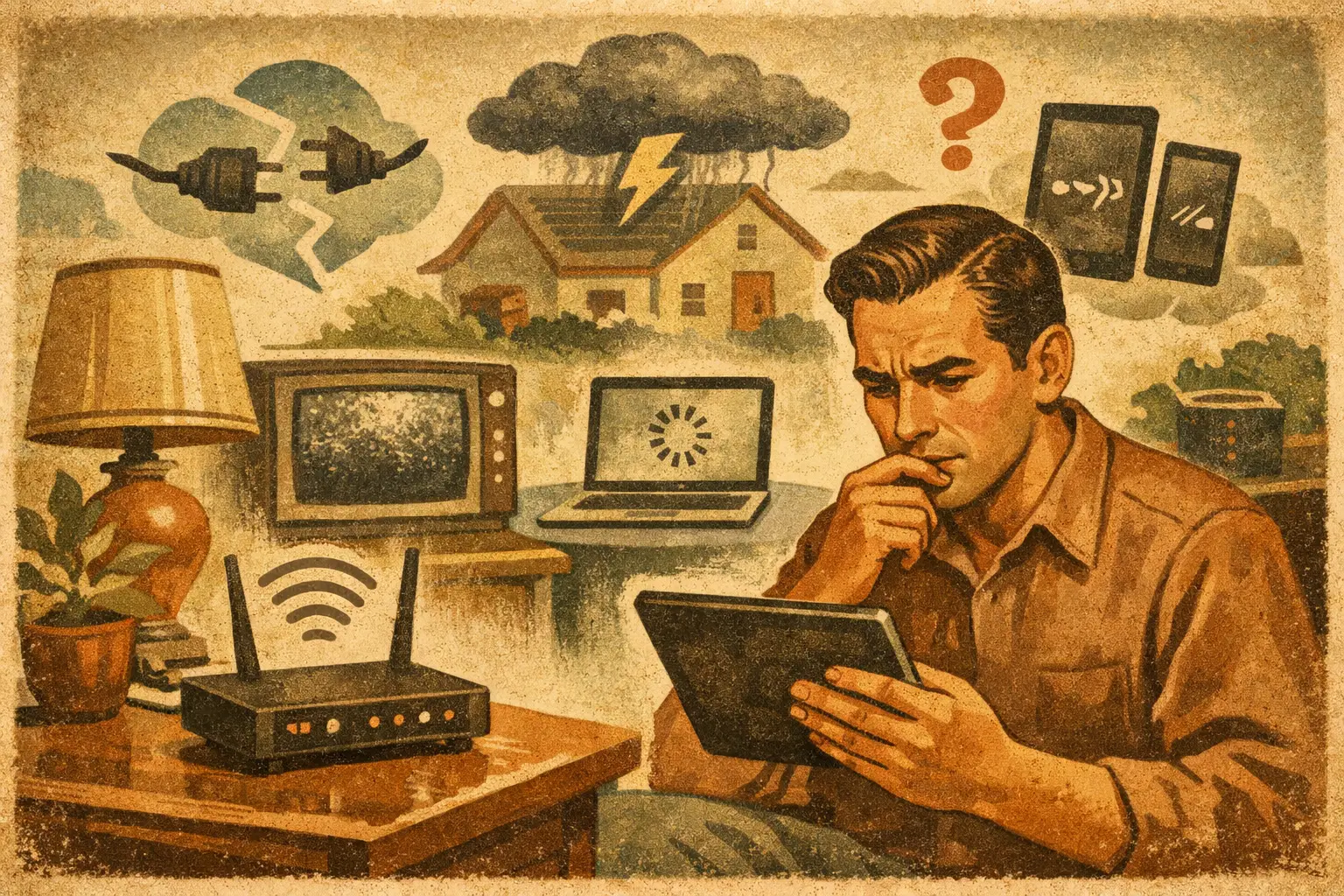
A video call freezes just as you need to speak. The smart TV starts buffering halfway through a movie. Or your phone says it is connected to Wi-Fi, but nothing will load. This home wifi troubleshooting guide starts with the simple checks that solve many household problems - without assuming you need to be a network expert.
Wi-Fi trouble can feel random, but it usually comes down to one of a few things: the internet service coming into the home, the modem or router, where the Wi-Fi signal reaches, or a particular device. The goal is to narrow that down calmly rather than changing every setting at once.
Start by identifying what is actually failing
Before restarting anything, check whether the problem affects one device or several. Try opening a familiar website on a phone, tablet, and computer. If every device is slow or offline, the issue is likely with your modem, router, internet provider, or a wider outage. If only one device is struggling, your internet connection may be fine and that device needs attention.
Also notice whether the issue is everywhere in the house or only in one room. A laptop that works well beside the router but poorly in a bedroom is showing a signal coverage problem, not necessarily a slow internet plan.
This small bit of detective work saves time. It also helps you explain the problem clearly if you need support from your internet provider or a technology helper.
Restart your equipment in the right order
Restarting can help because routers and modems work continuously. Like any device, they can occasionally get stuck or need a fresh connection. The key is to restart them properly, not just press buttons at random.
If you have a separate modem and router, unplug both devices from power. Wait a full 60 seconds. Plug the modem back in first and give it several minutes to reconnect. Its lights should settle into their normal pattern. Then plug in the router and wait another two or three minutes before testing your connection.
If you have one combined modem-router from your provider, unplug that unit for 60 seconds, reconnect it, and allow a few minutes for the service to return. Avoid repeatedly restarting it within a short period. That can make it harder to tell whether the connection is recovering.
If the internet still does not return, look at the service status in your provider's app or call its support line. An outage in your area cannot be fixed by changing settings inside your home.
Check the router's location
Your router sends out a radio signal. Walls, floors, metal, large appliances, mirrors, and distance can weaken it. A router hidden in a basement utility room, closed cabinet, or far corner of the house may work, but it is unlikely to provide the best coverage.
Place it as centrally as your cable connection allows, out in the open and raised off the floor. Keep it away from cordless phone bases, baby monitors, microwaves, and large speakers when possible. Do not cover it with books, decorations, or a basket.
A central location is not always realistic, especially in older homes. In that case, the answer may be a mesh Wi-Fi system or a properly placed extender. An extender can help one troublesome room, but it can also reduce speed if it is too far from the main router. Mesh systems often provide more consistent coverage across larger homes, though they cost more and take a little more setup.
Home WiFi troubleshooting guide: fix a device that will not connect
When one phone, tablet, computer, printer, or smart TV cannot connect while other devices work, start on that device. First, make sure airplane mode is off and Wi-Fi is turned on. Then select your home network and carefully re-enter the password if prompted. Wi-Fi passwords are case-sensitive, so a capital letter or number in the wrong place will prevent a connection.
If the device says it is connected but has no internet, try turning its Wi-Fi off and back on. If that does not help, choose the option to forget the network, then reconnect using the password. This removes saved connection details that may have become confused after a router change or password update.
For computers, a restart is often worthwhile after reconnecting. For a smart TV or streaming box, unplugging it briefly can clear a temporary software problem. Printers deserve special patience: many older wireless printers have trouble reconnecting after a new router, a password change, or a power outage.
Do not reset a device to factory settings as a first step. That can erase photos, apps, preferences, and saved sign-ins. It is a last resort, not a standard Wi-Fi fix.
When Wi-Fi is connected but feels slow
A Wi-Fi symbol does not guarantee a fast connection. Slow performance may be caused by a weak signal, too many active devices, a busy time of day, an aging router, or the internet plan itself.
Test speed in the same room as the router, then test again where the problem normally happens. If the connection is fast close to the router and slow farther away, focus on coverage. If it is slow everywhere, restart the equipment and check whether someone is downloading large files, gaming online, backing up photos, or streaming on several screens at once.
It also helps to understand the difference between Wi-Fi speed and internet speed. Your provider may deliver the speed you pay for to the modem, while your device gets less because of distance or interference. A newer router may improve Wi-Fi inside the home, but it will not overcome a slow or unreliable connection from the provider.
For remote workers, a wired Ethernet connection can be a practical answer for a desk computer or work laptop. It is not as convenient as wireless, but it is often steadier for video meetings and large file transfers.
Improve security while you are checking settings
Wi-Fi troubleshooting is a good time to make sure your network is protected. Your router should have a unique Wi-Fi password, not the default password printed in an old setup guide. Choose a password that is long and memorable to your household but difficult for others to guess.
Use WPA2 or WPA3 security if your router offers it. Keep the router's software updated, either through its app or settings page. If guests visit often, a separate guest network can keep their devices away from your main computers, printers, and smart-home equipment.
Be cautious about pop-ups, calls, or emails claiming that your router is infected or needs urgent repair. Legitimate providers do not typically ask for remote access to your computer through an unexpected call. When in doubt, close the message and contact the company using a phone number from your bill or official account.
Know when it is time for help
A little troubleshooting is useful, but you should not have to spend an afternoon crawling behind furniture or worrying that one wrong click will break everything. It may be time for hands-on help when Wi-Fi drops repeatedly, devices keep disconnecting, the router is old, a printer will not stay online, or coverage is poor in important rooms.
A patient technician can check the full setup, including router placement, wiring, device settings, security, and whether a mesh system or provider upgrade is actually worthwhile. For households in Durham Region, an in-home visit can be especially helpful because Wi-Fi performance depends on the layout and materials of the home, not just the equipment in a box.
No question is silly when your connection affects work, school, safety, and staying in touch with family. Start with one change, test it, and give yourself permission to ask for friendly help when the problem needs more than a restart.