
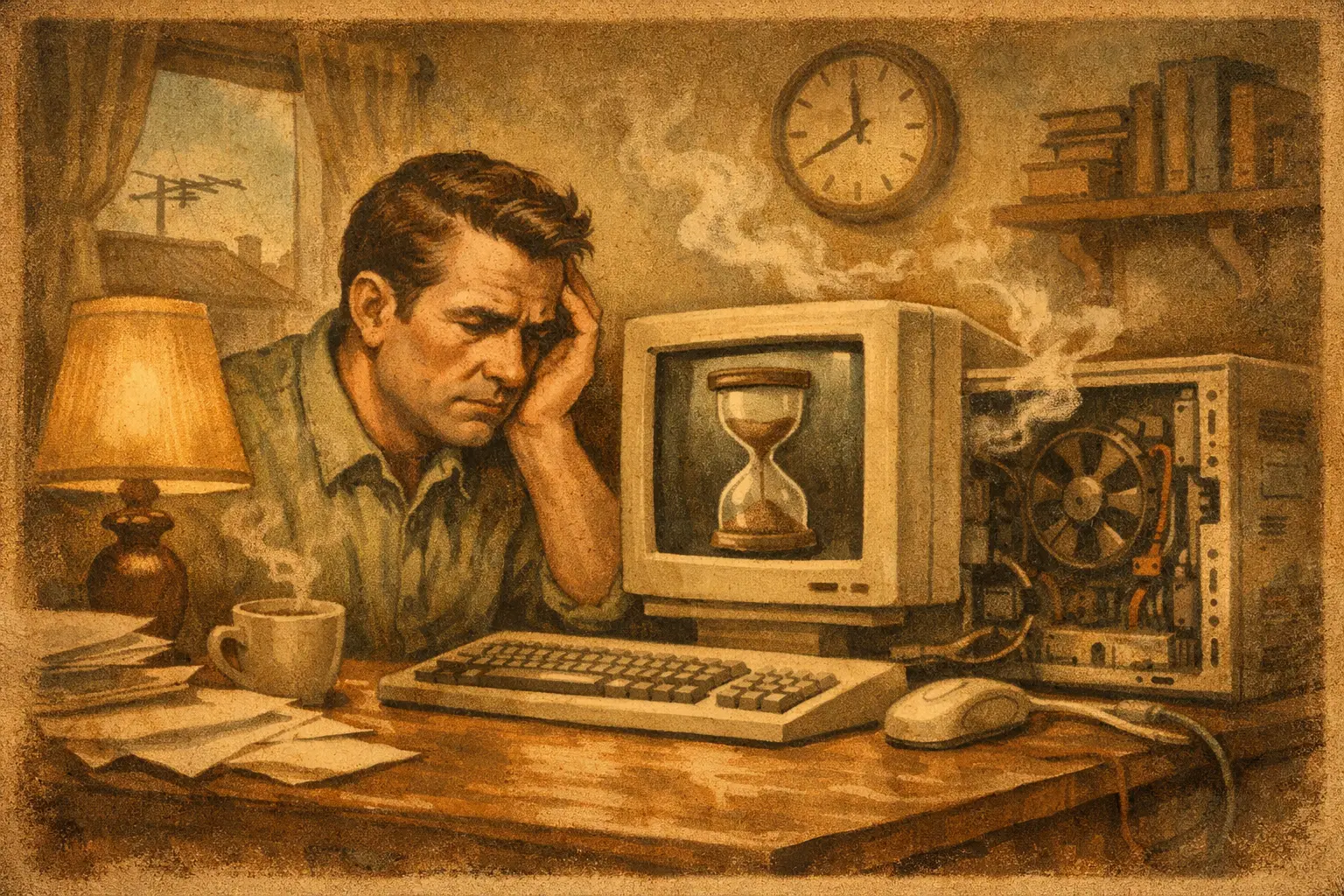
A computer that used to start quickly can slowly become frustrating: the screen takes ages to appear, email freezes, video calls stutter, and even opening a photo feels like a chore. If your computer is running slowly, the cause may be simple, but it is worth looking at carefully before deleting files or installing a “cleaner” program that makes big promises.
The good news is that a slow computer does not automatically mean it needs to be replaced. Often, a little housekeeping, an update, or a proper tune-up can make a noticeable difference. The key is to work calmly, protect your files, and avoid changes you do not understand.
Why Is a Computer Running Slowly?
A computer has several jobs happening at once. It runs the operating system, keeps security software active, connects to the internet, opens programs, and manages files in the background. When too many of those jobs compete for limited memory, storage space, or processing power, everything can begin to feel sluggish.
Age can be part of the story, but it is not the whole story. A well-maintained older computer can still be perfectly useful for email, web browsing, documents, and video calls. On the other hand, a newer computer can slow down if it is crowded with unnecessary programs, low on storage, infected with malware, or struggling with a failing hard drive.
Internet problems can also look like computer problems. If web pages, streaming, or video calls are slow but saved documents and programs open normally, your Wi-Fi or internet connection may be the real issue. That distinction can save a lot of time and worry.
Too many programs starting automatically
Many programs add themselves to your computer’s startup list when they are installed. Some are helpful, such as security software or cloud backup. Others are not needed every time you turn the computer on, including game launchers, chat apps, printer helpers, and software updaters.
Over time, those background programs can make startup painfully slow and leave less memory available for the things you actually want to do. Reviewing startup apps is often one of the quickest ways to improve a computer that takes a long time to wake up.
Storage that is nearly full
Your computer needs free space to work comfortably. When the main drive is almost full, updates may fail, programs can lag, and the system may have trouble creating temporary files.
Large photo collections, downloaded files, old videos, duplicate documents, and forgotten programs are common space users. Do not rush to delete everything, especially if family photos or important records are involved. First, identify what is taking space and make sure valuable files are safely backed up before removing or moving anything.
Updates, browser clutter, and background activity
Updates are usually helpful, but they can temporarily slow a computer while they are downloading or installing. A restart may be all that is needed after an update finishes.
Your web browser can also become overloaded. Dozens of open tabs, unused extensions, and years of stored website data can cause a browser to freeze or feel slow. If the computer itself seems fine until you open the internet, the browser is a sensible place to check.
Malware or unwanted software
Malware is not always dramatic. Sometimes it does not show obvious warning messages. Instead, it may cause pop-ups, change your home page, show unfamiliar toolbars, use internet data, or quietly make your computer run poorly.
Be especially cautious if the slowdown began after clicking a suspicious email attachment, downloading a free program, or responding to a pop-up that claimed your computer was infected. Do not call a phone number displayed in a pop-up and do not give remote access to an unexpected caller. Legitimate companies do not normally contact you out of the blue to say they found a problem on your computer.
Safe Things to Try When Your Computer Is Running Slowly
Start with the simplest steps. They solve more problems than people expect and are unlikely to put your files at risk.
First, restart the computer. Choose Restart from the menu rather than simply closing the lid or turning the screen off. A proper restart clears temporary processes and can complete pending updates.
Next, close programs you are not using. If your browser has many tabs open, close the ones you no longer need. A video call, several browser tabs, photo editing software, and a large spreadsheet can use a surprising amount of memory when they are all open together.
Check how much free storage you have. If the drive is almost full, remove obvious items you no longer need from Downloads and empty the Recycle Bin or Trash after confirming there is nothing important inside. Uninstalling programs you no longer use can help too. Avoid deleting folders with unfamiliar names from the main system areas of the computer. Those files may be necessary for Windows or macOS to run correctly.
Run the security scan already included with your computer or your trusted antivirus software. Let the scan finish, even if it takes a while. If it finds threats, follow the recommended removal steps. If you are unsure what a result means, it is better to ask for help than click through warnings at random.
Finally, install available operating system updates, then restart again. Updates can improve security and fix bugs, but they need enough free storage and time to complete. It is best to run them when you do not need the computer immediately for work, school, or an appointment.
Changes That Need a Little More Care
Some slowdowns need more than a restart and a cleanup. A computer that makes clicking, grinding, or repeated buzzing sounds may have a hard drive beginning to fail. A laptop that gets very hot, has a loud fan all the time, or shuts down unexpectedly may need internal cleaning or repair.
A computer that is slow only during video calls may need a Wi-Fi check instead of a computer repair. Moving closer to the router, restarting the router, or reducing the number of devices streaming at the same time can help. But if every device in the house has internet trouble, the issue may be with the network or internet provider.
Hardware upgrades can sometimes extend a computer’s useful life. Replacing an older hard drive with a solid-state drive often makes startup and everyday use much faster. Adding memory can help if the computer regularly struggles with several open programs. Whether an upgrade is worthwhile depends on the computer’s age, condition, and what you need it to do. There is no sense spending heavily on an upgrade if another important part is failing or the device no longer supports security updates.
Before any repair, major cleanup, or upgrade, make a backup. A backup is not just for disasters. It gives you room to make sensible decisions without worrying that treasured photos, tax files, or important documents could disappear.
When It Is Time to Ask for Help
It is a good idea to get support if the computer is still slow after basic steps, if it crashes or displays error messages, or if you suspect a scam or virus. Help is also worthwhile when you are nervous about deleting files, moving photos to cloud storage, or deciding whether a repair is worth the cost.
A proper computer tune-up looks beyond one symptom. It can include checking startup programs, removing unwanted software, reviewing storage, confirming updates, scanning for malware, and looking at the health of the computer’s hardware. Just as importantly, you should receive an explanation in plain language so you know what changed and how to keep things running well.
For home users who prefer patient, one-on-one support, Eric the Tech can help with computer tune-ups, malware removal, safe backup, and practical guidance right where you use your technology. No question is silly, and you should never feel pressured to understand technical language before asking for help.
A slower computer is often asking for attention, not announcing the end of its useful life. Take the cautious steps first, keep your important files protected, and give yourself permission to get friendly help when the problem feels bigger than a quick fix.